 By
By In this post I would like to show you how I’ve setup Visual Studio Code for SharePoint Framework (SPFx) development.
Download and install
First of all you have to download Visual Studio Code by following this link. If you install it on a server system (as I did) you may get this message:

If you would like to install Visual Studio Code for all users you have to use another installer by following this link and downloading the System Installer version.

The installation process is straight forward. The next thing you need to do is to install the extensions that will help you in the SharePoint Framework development process.
GIT
The following 3 extensions will help you to integrate your solution with GIT repository:
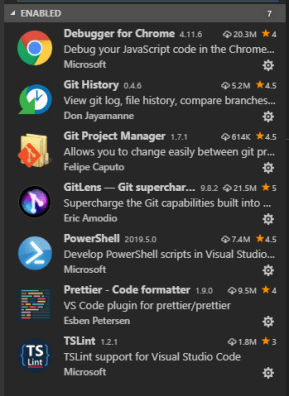
Git History
View git log, file history, compare branches or commits.
Git Project Manager
Allows you to change easily between git projects.
GitLens Git – supercharged
GitLens supercharges the Git capabilities built into Visual Studio Code. It helps you to visualize code authorship at a glance via Git blame annotations and code lens, seamlessly navigate and explore Git repositories, gain valuable insights via powerful comparison commands, and so much more.
Debugger for Chrome
Debug your JavaScript code in the Chrome browser, or any other target that supports the Chrome Debugger protocol.
Prettier – Code formatter
You don’t have to deal with formatting your code, Prettier does that for you automatically.
TSLint (Microsoft)
Checks TypeScript code for readability, maintainability, and functionality errors (link)
Extra: PowerShell
Probably you would like to write powershell scripts directly from you VS Code.
By now you should have the following extensions installed:
Settings
Color Theme
I usually use the Monokai Dimmed theme because it doesn’t have to much contrast and luminosity so it’s perfect for rooms where is not too much light. Sometimes at the office when there is a lot of light from the sun, I use the Monokai theme because it has more contrast and light.
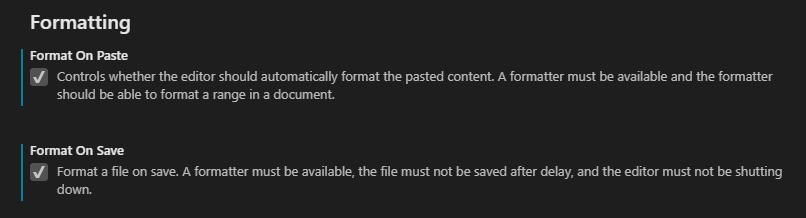
Formatting
- Format On Paste
- Format On Save
Prettier
- Print Width: 120

That’s all, this is the basic setup of Visual Studio Code to get you started with SharePoint Framework development (and perhaps client side development in general). In a future post I’ll show you how to setup your laptop for SharePoint Framework development.
Have fun!

 octavian sfetcu
1 comments on “Setup Visual Studio Code for SharePoint Framework development (on windows)”